Add a support agent
In the console: Top bar › Agent › Add an agent
Name the new agent after where it works, for example Customer support, and choose Support agent. You can also switch an existing agent's type under AI Agent Setup › Type of agent.

The Chambre console, shown with an example account.
Teach it your help content
In the console: Knowledge Store › Help & support guides
Add your help centre or docs site, upload user guides and manuals, and press Learn from your Guides & tutorials so it knows the articles you've written in the console.
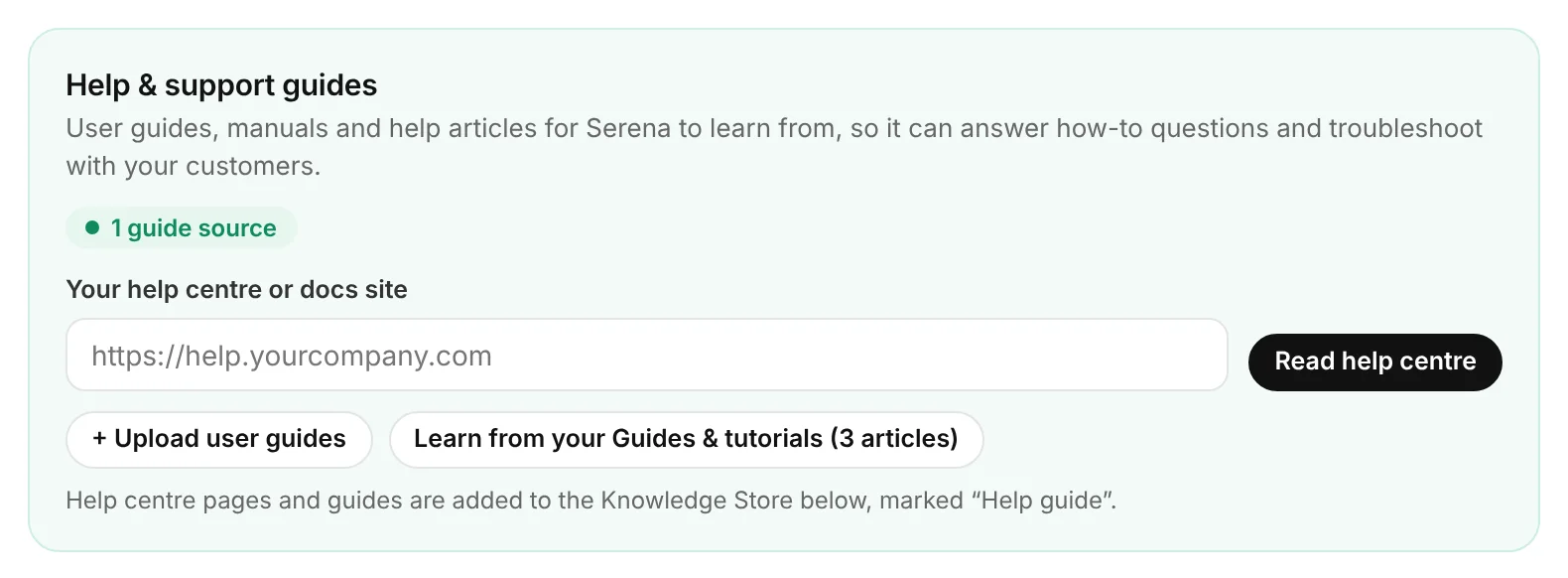
The Chambre console, shown with an example account.
Route signed-in customers to it
In the console: Install & security › Who talks to whom
Under Signed-in customers, choose your support agent. Tell Chambre which pages are behind your login, or call Chambre.identify() from your own code when a customer signs in. Everyone else keeps talking to your sales agent.
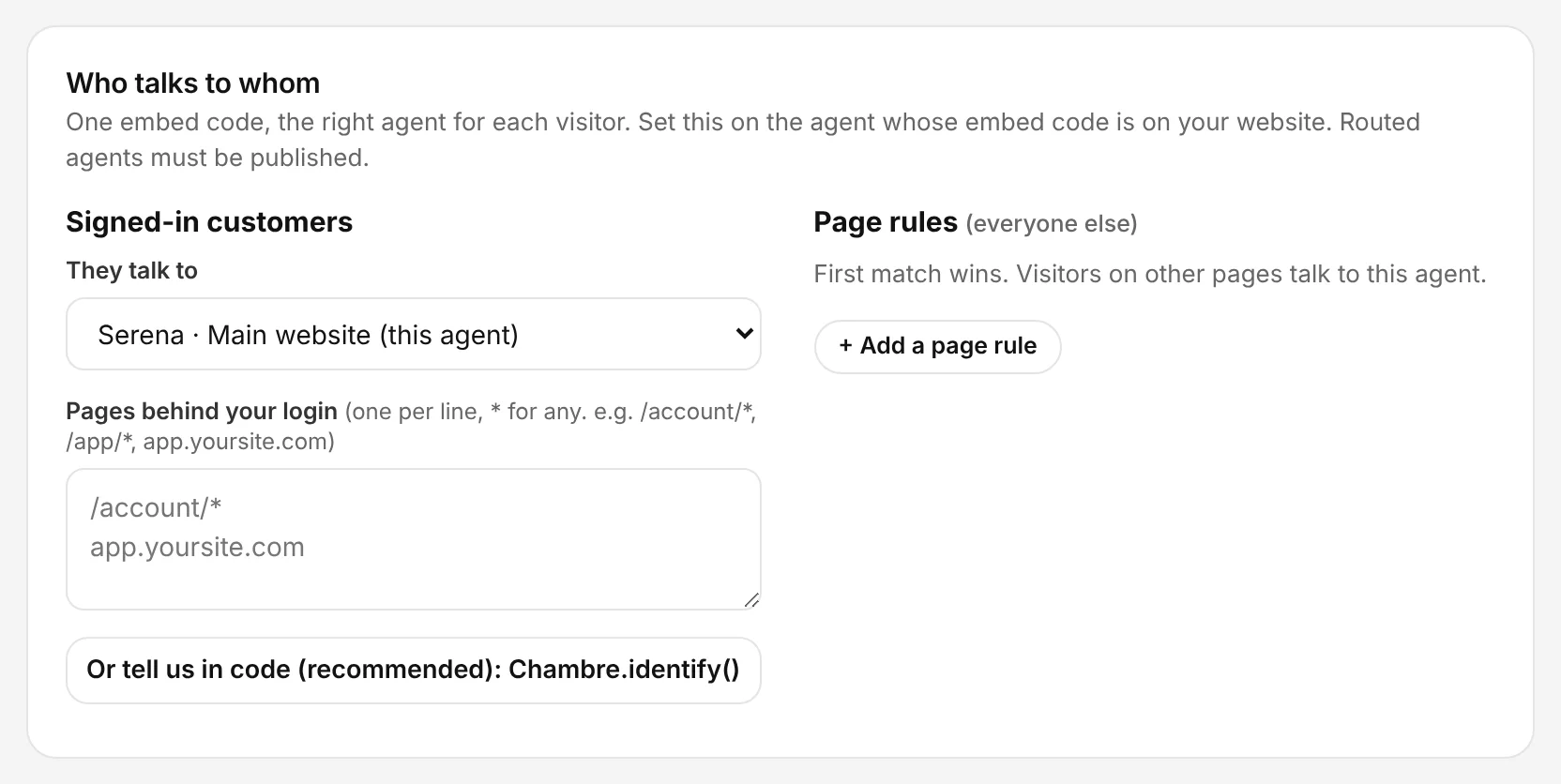
The Chambre console, shown with an example account.
Publish both agents
In the console: Save and publish, then the Live switch
Save and publish each agent. The switch beside the agent's name shows whether it's live; the agent menu shows a green dot for live agents and a red dot for those that aren't.