Copy your embed code
In the console: Install & security › Add to your website
Choose Google Tag Manager and copy the one line of code. It looks like <script src="https://chambre.io/embed.js" data-key="pk_…" async></script>, with your own site key in place of pk_….
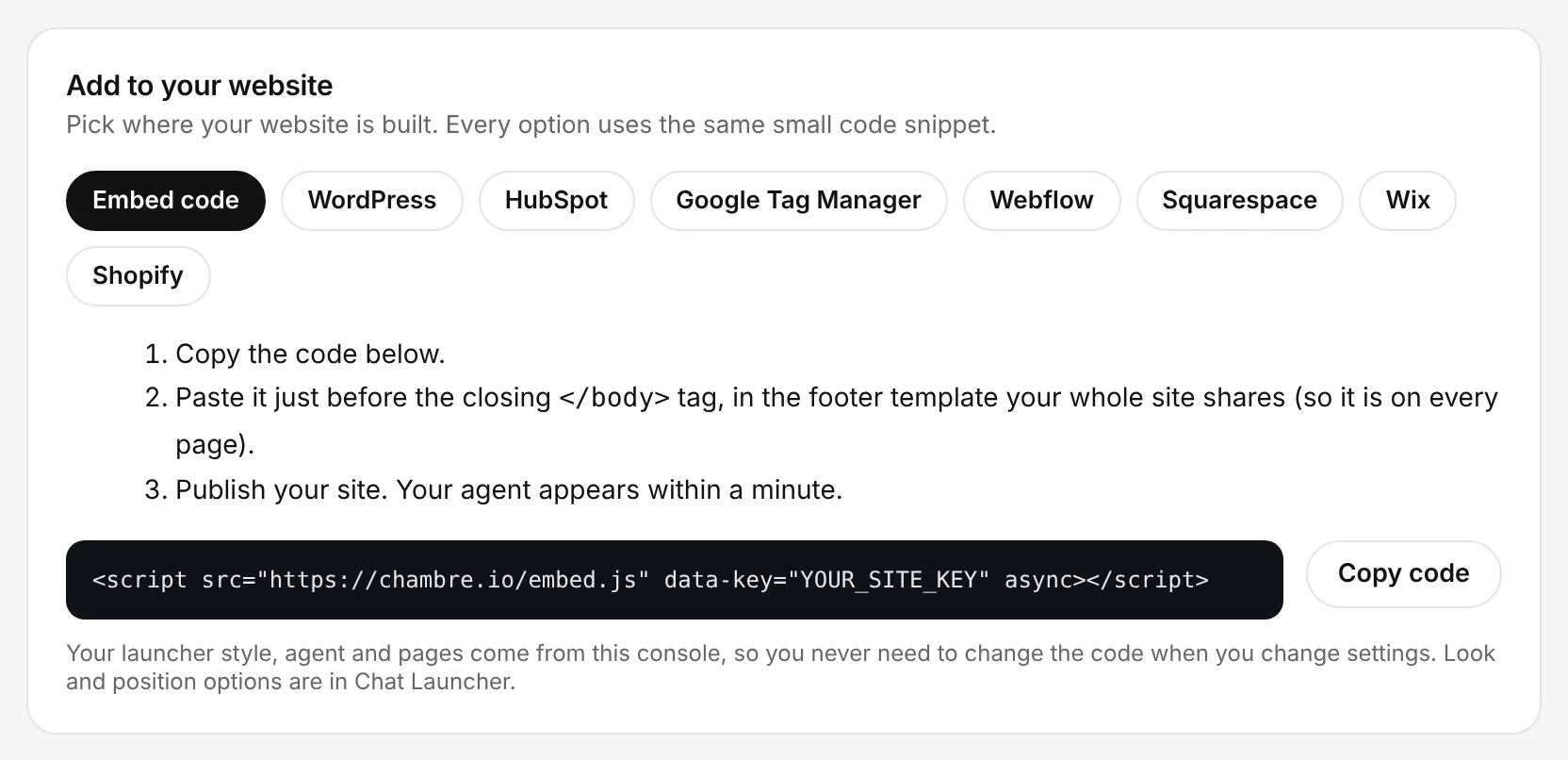
The Chambre console, shown with an example account.
Allow your website
In the console: Install & security › Allowed websites
Add every address the agent should appear on, for example https://www.yourcompany.com. Use https://*.yourcompany.com to cover all your subdomains. The agent won't load on an address that isn't listed.
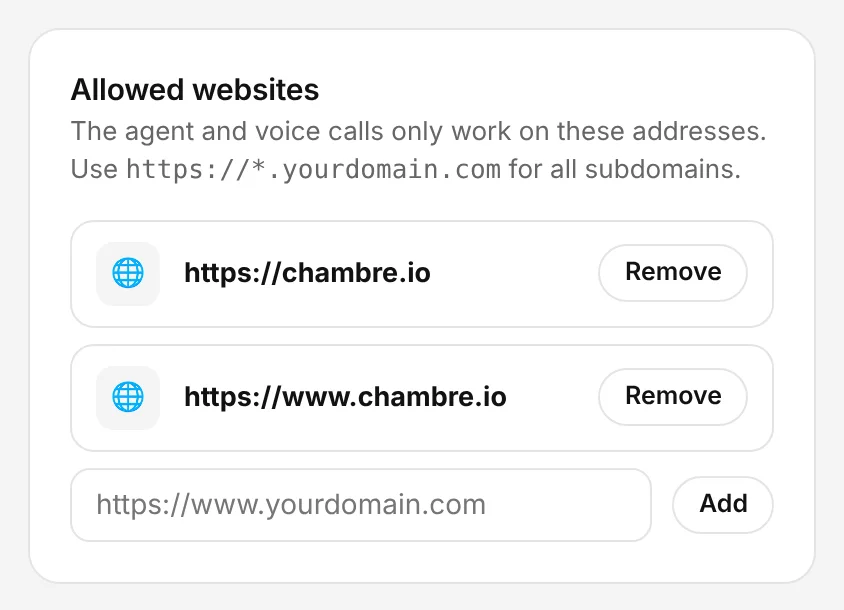
The Chambre console, shown with an example account.
Create a Custom HTML tag
In Google Tag Manager: Tags › New › Tag Configuration
Open your website's container in Google Tag Manager and go to Tags, then New. Name the tag at the top, for example Chambre AI Sales Agent. Click Tag Configuration and, under Custom, choose Custom HTML. Paste your embed code into the HTML box and leave Support document.write unticked.
Fire it on every page
In Google Tag Manager: Triggering
Click Triggering and choose All Pages (the Page View trigger), then press Save. The agent then appears on every page of your website.
Test it in Preview
In Google Tag Manager: Preview (top right)
Click Preview, enter your website's address and press Connect. Your website opens with your agent in the corner, and Tag Assistant lists Chambre AI Sales Agent under Tags Fired.
Publish your container
In Google Tag Manager: Submit › Publish
Back in Google Tag Manager, click Submit, give the version a name such as Add Chambre, then press Publish. Open your website in a private window to see your agent live.