Copy your embed code
In the console: Install & security › Add to your website
Pick where your website is built (WordPress, HubSpot, Google Tag Manager, Webflow, Squarespace, Wix or Shopify) and the console shows you exactly where the code goes. It's one line, pasted once, just before the closing </body> tag that every page shares.
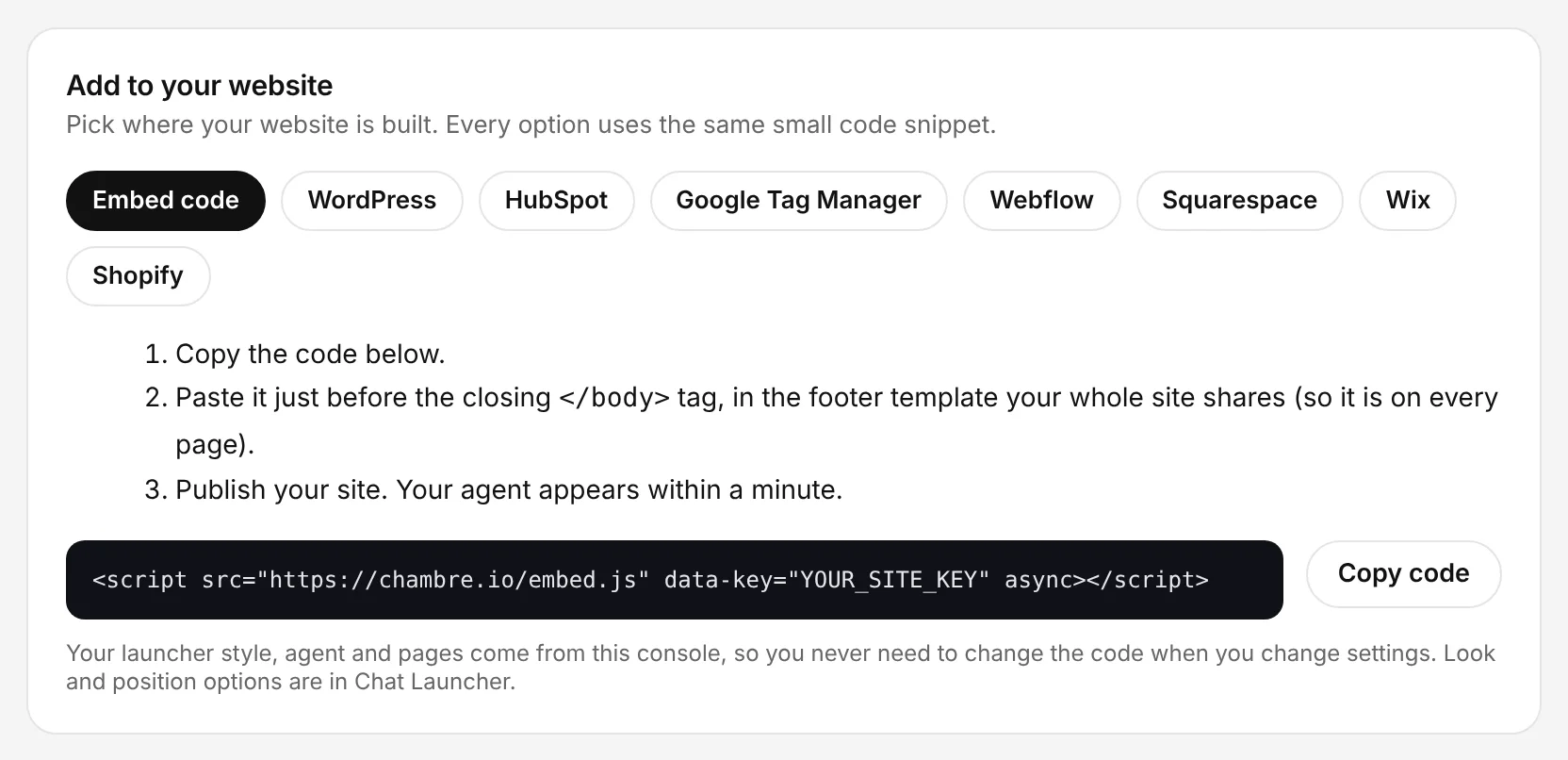
The Chambre console, shown with an example account.
Allow your website
In the console: Install & security › Allowed websites
Add your website's address. The agent and voice calls only work on the addresses you list, so nobody can copy your code onto another site. Use https://*.yourdomain.com to cover every subdomain.
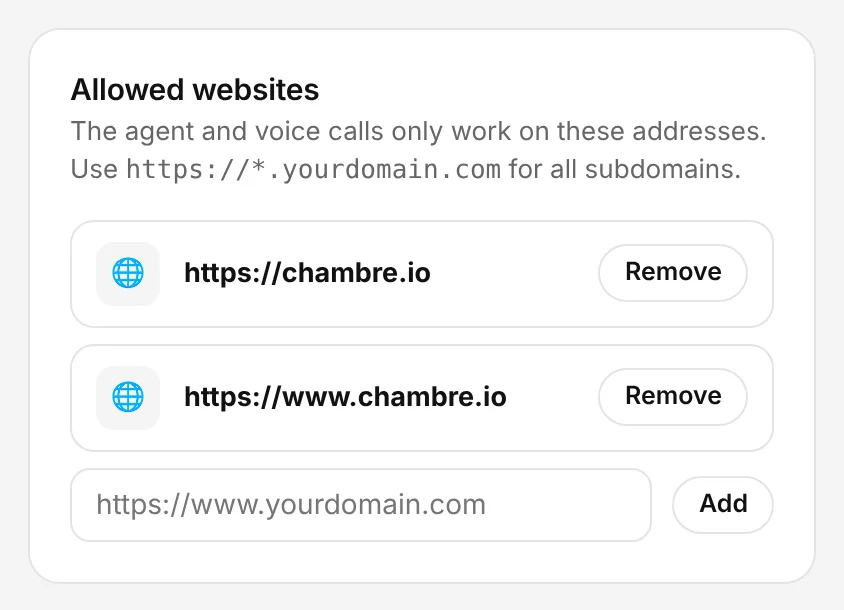
The Chambre console, shown with an example account.
Choose how the agent appears
In the console: Chat Launcher › Launcher style
Choose an avatar card, a split-screen panel, an avatar bubble or a classic corner button. Phones get their own layout, and you can set position, size and a short delay before it appears.
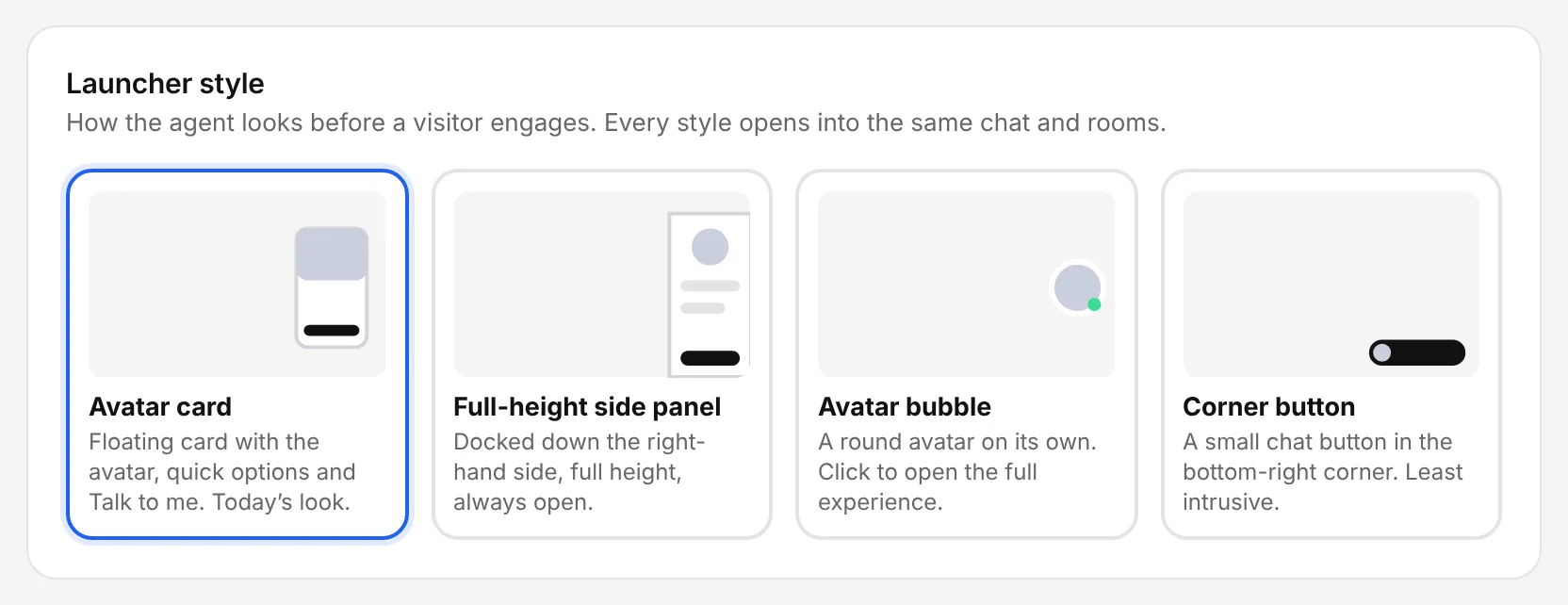
The Chambre console, shown with an example account.
Give it a face, a voice and a name
In the console: AI Agent Setup
Pick an avatar or upload a photo you have the rights to use, choose a voice, name your agent and set its personality and languages. The live preview on the right updates as you go.
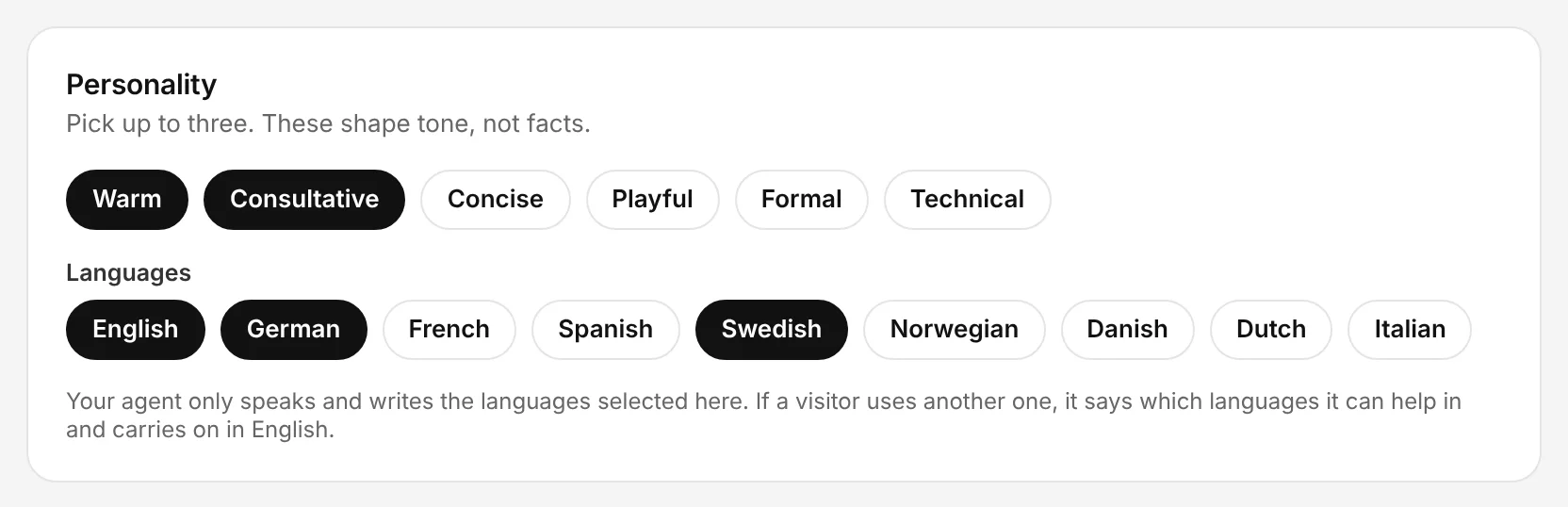
The Chambre console, shown with an example account.
Save and publish
In the console: Save and publish (bottom of every page)
Press Save and publish. Your settings are picked up automatically by the code on your website, so you never need to change it again. Check the switch beside the agent's name in the top bar says Live.