Connect Attio
In the console: Integrations › Attio › Connect
Click Connect and sign in to Attio. Choose your workspace and approve access. Chambre asks only for what it needs: to create and update people, add notes and list entries, and read your lists so you can pick one. A workspace admin needs to approve the connection.
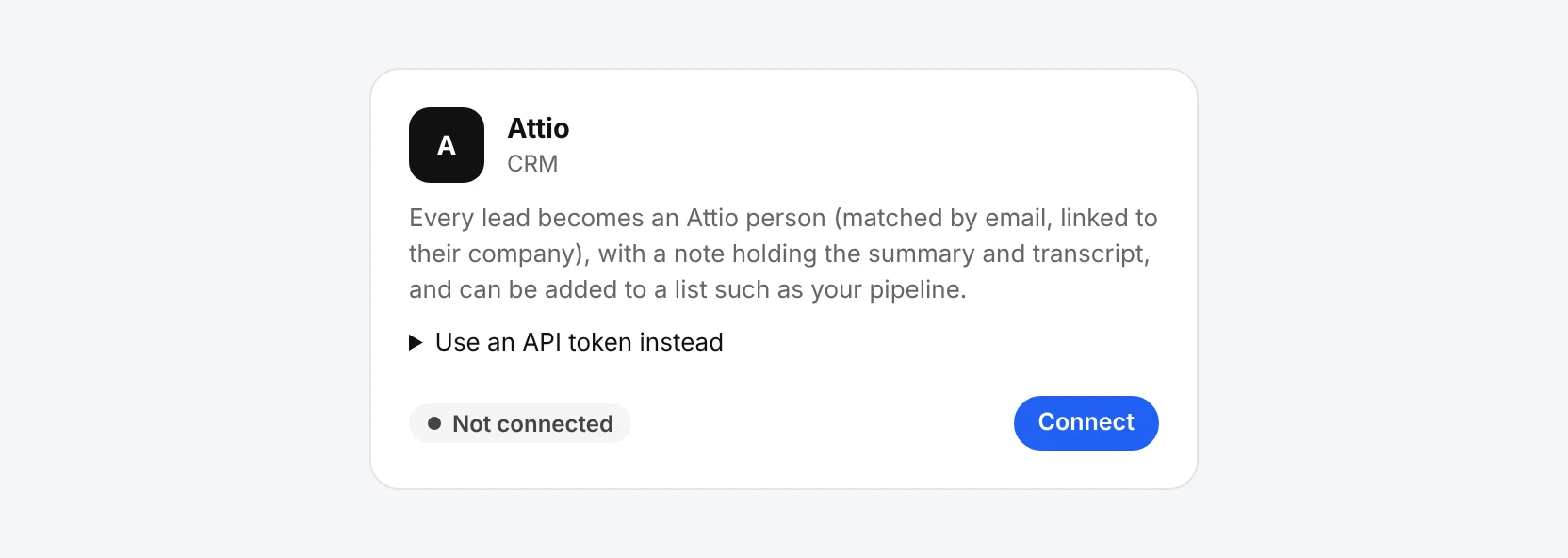
The Chambre console, shown with an example account.
Choose what is sent
In the console: Integrations › Attio
Leave Send new leads on. Switch Include the transcript on or off: the note always has a summary of the conversation, what the visitor was interested in and any meeting they booked; the transcript adds the full conversation underneath. Optionally pick a list, such as Inbound leads, and every new lead is added to it. Only lists of people are shown.
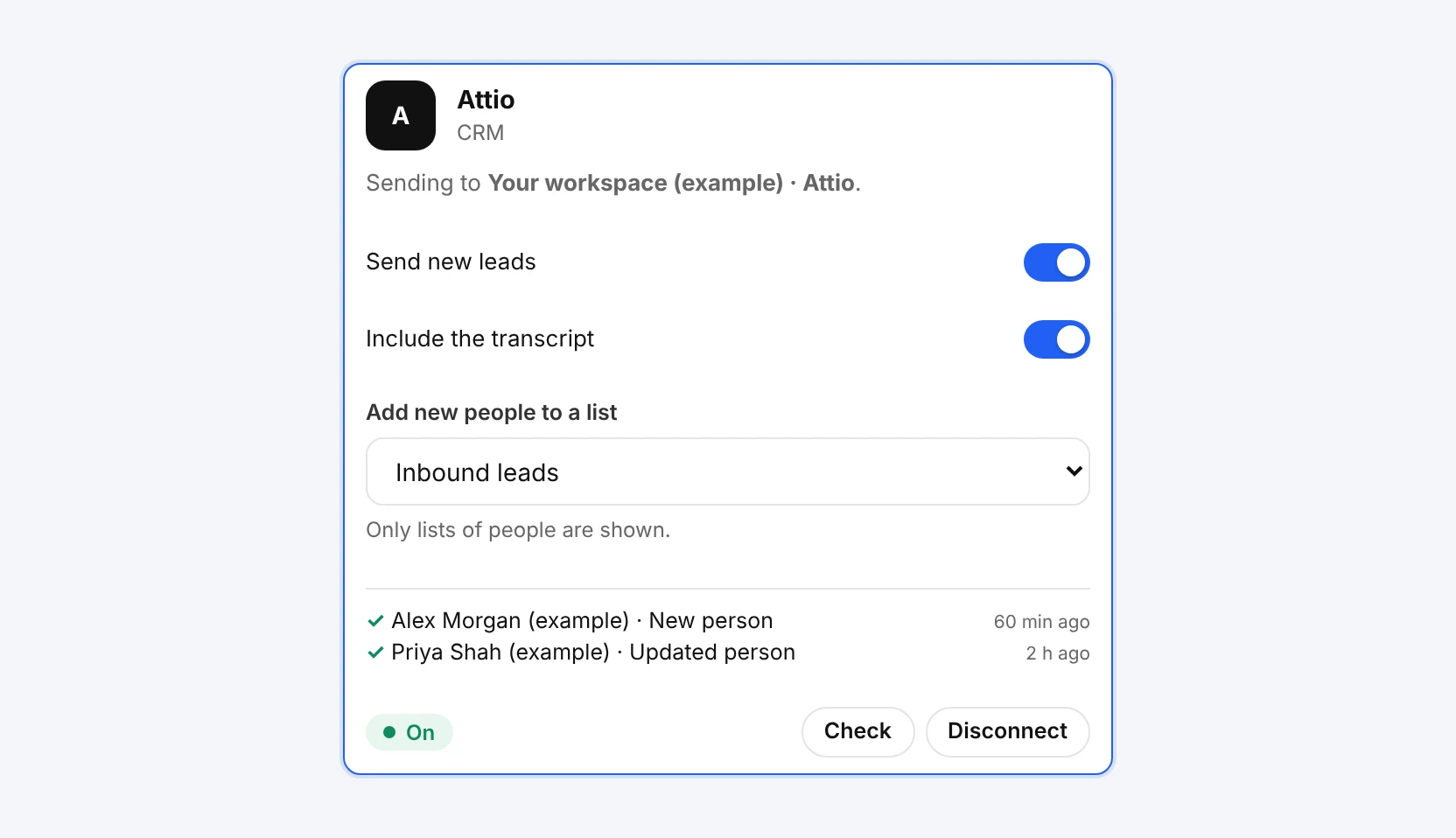
The Chambre console, shown with an example account.
See your leads arrive
In the console: Attio › People
When a visitor shares their email address in a chat, a voice call or a form, Chambre creates the person in Attio, or updates them if that email address is already there, with their name and phone number when given, and adds a note titled Website conversation. It usually appears within moments.
Check, resend or disconnect
In the console: Integrations › Attio
The card lists the latest leads sent and whether each one arrived. Check tests the connection; if a lead failed, for example because a list was deleted, fix it and resend. Disconnect stops sending straight away and removes Chambre's access token.